
Polygon Smoother
The Polygon Smoother tool allows smoothing of polygons and lines with jagged boundaries, typically resulting from raster-to-vector processes. It relies on the Chaikin corner-cutting algorithm to generate smoother and more natural geometries. This tool uses the open-source Smoothify library (https://github.com/DPIRD-DMA/Smoothify).
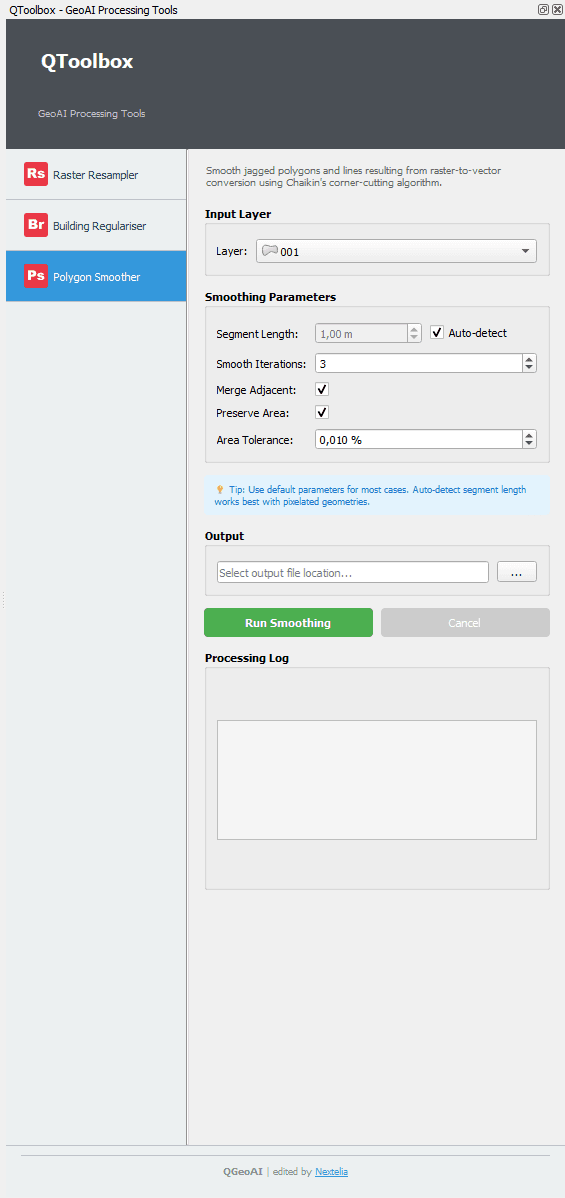
Input Layer
Select the vector layer (polygons or lines) to smooth from the list of available layers in the QGIS project.
Tip: Ensure the selected layer is valid, not locked, and contains geometries suitable for smoothing.
Smoothing Parameters
Segment Length: Target length of segments used for smoothing (e.g., 1.00 m). Smaller values produce finer smoothing but increase processing time.
Auto Detect: Automatically detects an appropriate segment length based on the input layer geometry.
Smooth Iterations: Number of smoothing iterations. Higher values increase smoothness but may alter the original geometry more significantly.
Merge Adjacent: Merges adjacent features before smoothing to avoid discontinuities along shared boundaries.
Preserve Area: Attempts to preserve the original area of polygons after smoothing.
Area Tolerance (%): Maximum allowed percentage of area variation when Preserve Area is enabled.
Output
Specify the location and name of the output vector file containing the smoothed geometries.
Output File
Commands
- Run Smoothing
- Cancel
Note: The Run Smoothing button executes the process. Cancel interrupts the running operation.
Processing Log
Displays processing information including progress, potential errors, and a summary of applied parameters.
Tip: Monitor the log to track progress and identify potential issues.
Quick Workflow
- Select the vector layer in Input Layer
- Configure the smoothing parameters
- Define the output file
- Click Run Smoothing
- Check the processing log