
Building Regulariser
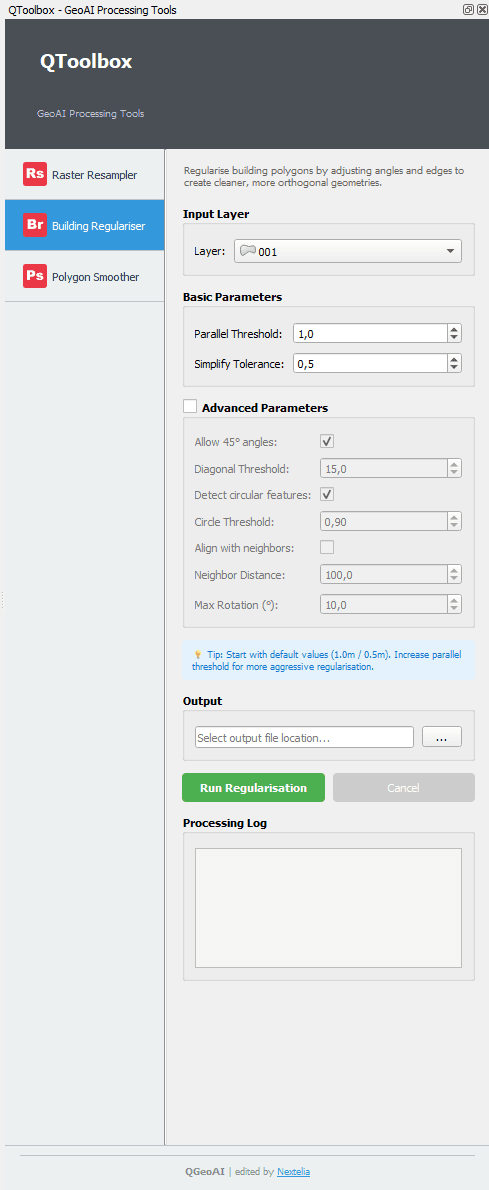
The Building Regulariser tool adjusts building polygon geometries by snapping angles to regular values (90°, 45°) and aligning parallel edges. This creates cleaner, more orthogonal geometries from noisy or irregular input data.
Powered by: building-regulariser package
Best Use Cases
Recommended for:
- Industrial and commercial buildings with orthogonal architecture
- Urban cadastre with predominantly rectangular buildings
- Buildings with primarily 90° and 45° angles
- Standardizing building footprints for urban planning
Not recommended for:
- Complex organic architectures (Mediterranean villas, heritage buildings)
- Buildings with arbitrary angles
- Circular or curved structures (unless using circle detection)
- Highly irregular or artistic architectural designs
Input Layer
Select the building vector layer to regularise from the available layers in the QGIS project.
Tip: for best results, use a layer containing clean building polygons without invalid geometries.
Parameters
Basic Parameters
These parameters control the fundamental behavior of the regularisation process and are sufficient for most use cases.
Parallel Threshold
- Type: Decimal (meters)
- Default: 1.0
- Range: 0.1 - 10.0
What it does: Defines the maximum distance between two edges to be considered "parallel" and merged into a single aligned edge.
Technical details: Uses spatial tolerance to detect edges that should be parallel in reality but aren't due to digitization errors or GPS noise. When two edges are within this threshold distance and have similar angles, they are replaced by a single perfectly parallel edge.
How to adjust:
- Lower (0.5-1.0): Strict alignment, only truly parallel edges are merged
- Higher (1.5-2.0): More permissive, merges edges that are "approximately" parallel
- Recommendation: Start with 1.0 and increase if buildings remain jagged
Simplify Tolerance
- Type: Decimal (meters)
- Default: 0.5
- Range: 0.1 - 5.0
What it does: Controls geometry simplification using the Douglas-Peucker algorithm. Removes small segments and details smaller than the specified tolerance.
Technical details: After regularisation, vertices are simplified to reduce polygon complexity. A vertex is removed if it deviates less than the tolerance from the line connecting its neighbors. This reduces file size and improves rendering performance.
How to adjust:
- Lower (0.1-0.3): Preserves more details, keeps small architectural features
- Higher (0.5-1.0): More aggressive simplification, removes small irregularities
- Recommendation: Use 0.3 for complex buildings, 0.5 for simple rectangular buildings
Advanced Parameters
These parameters provide fine-grained control over the regularisation algorithm. Most users can leave them at default values.
Allow 45° Angles
- Type: Checkbox
- Default: Enabled
What it does: Allows the algorithm to snap edges to 45° angles in addition to 0° and 90°.
Technical details: When enabled, edges are snapped to the nearest multiple of 45° (0°, 45°, 90°, 135°, 180°, etc.). When disabled, only orthogonal angles (0° and 90°) are permitted, forcing all diagonal edges to be converted into "staircase" patterns of horizontal and vertical segments.
How to adjust:
- Enabled: Better for buildings with diagonal walls or angled architecture
- Disabled: Creates pure rectangular geometries but may create jagged edges on diagonal walls
- ⚠️ Warning: Disabling this option on non-rectangular buildings will create pixelated/voxelized results
Diagonal Threshold Reduction
- Type: Decimal
- Default: 15.0
- Range: 1.0 - 20.0
What it does: Controls how strictly diagonal edges (45°) are treated compared to orthogonal edges.
Technical details: This is a division factor applied to the parallel threshold specifically for diagonal edges. The effective threshold for diagonals becomes parallel_threshold / diagonal_threshold_reduction. Lower values make the algorithm more strict about accepting 45° angles, while higher values are more permissive. Formula: diagonal_tolerance = parallel_threshold / diagonal_threshold_reduction. Example: With parallel_threshold=1.2 and diagonal_threshold_reduction=10.0 → diagonal tolerance = 0.12m
How to adjust:
- Lower (5.0-8.0): Very strict, diagonals must be nearly perfect 45° angles
- Medium (10.0-12.0): Balanced approach (recommended)
- Higher (15.0-20.0): Permissive, accepts approximate diagonals more easily
- If you see "staircase" edges on diagonals: Increase this value
Detect Circular Features
- Type: Checkbox
- Default: Enabled
What it does: Detects and preserves circular or near-circular shapes instead of converting them to polygons.
Technical details: Uses shape analysis to identify features with high circularity ratio. When detected, these features are preserved as rounded shapes rather than being regularized into polygons with many edges. Useful for silos, towers, rounded corners, or circular buildings.
How to adjust:
- Enabled: Preserves circular architecture (recommended for mixed building types)
- Disabled: Converts all shapes to angular polygons
Circle Threshold
- Type: Decimal
- Default: 0.9
- Range: 0.5 - 1.0
What it does: Defines how "round" a shape must be to be considered circular.
Technical details: Uses the isoperimetric quotient: circularity = (4π × area) / (perimeter²). A perfect circle has a value of 1.0. Only shapes with circularity above this threshold are treated as circles. 1.0 = Perfect circle only, 0.9 = Nearly circular (default, good balance), 0.7-0.8 = Loosely circular (may include rounded rectangles), 0.5-0.6 = Very permissive (risk of false positives)
How to adjust:
- Higher (0.95-1.0): Only perfect or near-perfect circles
- Lower (0.7-0.85): Accepts more rounded shapes
- Only active when "Detect circular features" is enabled
Align with Neighbors
- Type: Checkbox
- Default: Disabled
What it does: Analyzes nearby buildings and attempts to align edges with neighboring structures.
Technical details: For each building, the algorithm searches for neighbors within the specified distance, analyzes their edge orientations, and rotates/aligns the current building to match the dominant orientation of its neighbors. This creates visual coherence in dense urban areas where buildings share walls or follow street alignment patterns.
How to adjust:
- Enabled: Better visual coherence in dense urban areas (row houses, city blocks)
- Disabled: Faster processing, each building treated independently
- ⚠️ Warning: Significantly slower processing, recommended only for dense urban environments
- Performance impact: Can increase processing time by 5-10x on large datasets
Neighbor Search Distance
- Type: Decimal (meters)
- Default: 100.0
- Range: 10.0 - 500.0
What it does: Defines the search radius for finding neighboring buildings.
Technical details: When "Align with neighbors" is enabled, the algorithm creates a spatial buffer around each building and identifies all neighboring buildings within this distance. Only buildings within this radius influence the alignment calculation. Larger values consider more neighbors but increase processing time.
How to adjust:
- Smaller (50-100m): Local neighborhood alignment, faster
- Larger (200-500m): Broader area alignment, slower
- Only active when "Align with neighbors" is enabled
- Recommendation: Use 50-100m for residential areas, 100-200m for commercial districts
Max Rotation (°)
- Type: Decimal (degrees)
- Default: 10.0
- Range: 1.0 - 45.0
What it does: Maximum angle by which a building can be rotated to align with its neighbors.
Technical details: Limits how much the algorithm can rotate a building during neighbor alignment. This prevents over-correction where a building would be rotated too aggressively to match neighbors that have very different orientations. The algorithm calculates the dominant orientation of neighbors and rotates the current building toward that orientation, but never more than this maximum.
How to adjust:
- Lower (5-10°): Subtle alignment, preserves original orientation
- Higher (20-45°): Aggressive alignment, can significantly change orientation
- Only active when "Align with neighbors" is enabled
- Recommendation: Use 5-10° for most cases to avoid over-correction
Output
Specify the location and name of the output vector file containing the regularised buildings.
Output file
Commands
- Run Regularisation
- Cancel
Note: the Run Regularisation button executes the processing. The Cancel button interrupts the current process.
Processing Log
Displays processing information, including progress, any errors, and a summary of the applied parameters.
Tip: check the log to track calculation progress and identify potential issues.
Quick Workflow
- Select the building layer in Input Layer
- Adjust regularisation parameters
- Define the output file
- Click Run Regularisation
- Check the processing log
Tips & Troubleshooting
Problem: Diagonal walls appear as "staircases"
Solution: Increase "Diagonal Threshold Reduction" to 15.0 or 18.0
Problem: Too many details are lost
Solution: Decrease "Simplify Tolerance" to 0.2-0.3
Problem: Irregular angles remain after processing
Solution: Decrease "Diagonal Threshold Reduction" to 8.0-10.0
Problem: Buildings are too "square" and unnatural
Solution: This is a limitation of the algorithm. Consider using the Polygon Smoother tool instead for organic architectures.
Problem: Processing is very slow
Solution: Ensure "Align with neighbors" is disabled unless specifically needed for dense urban areas.