
QGeoAI Server: Architecture and Operation
QGeoAI Server is a local HTTP server that runs only on your machine. It enables QGIS plugins from the QGeoAI suite to access artificial intelligence tools (PyTorch, SAM2, YOLO) without overloading QGIS.
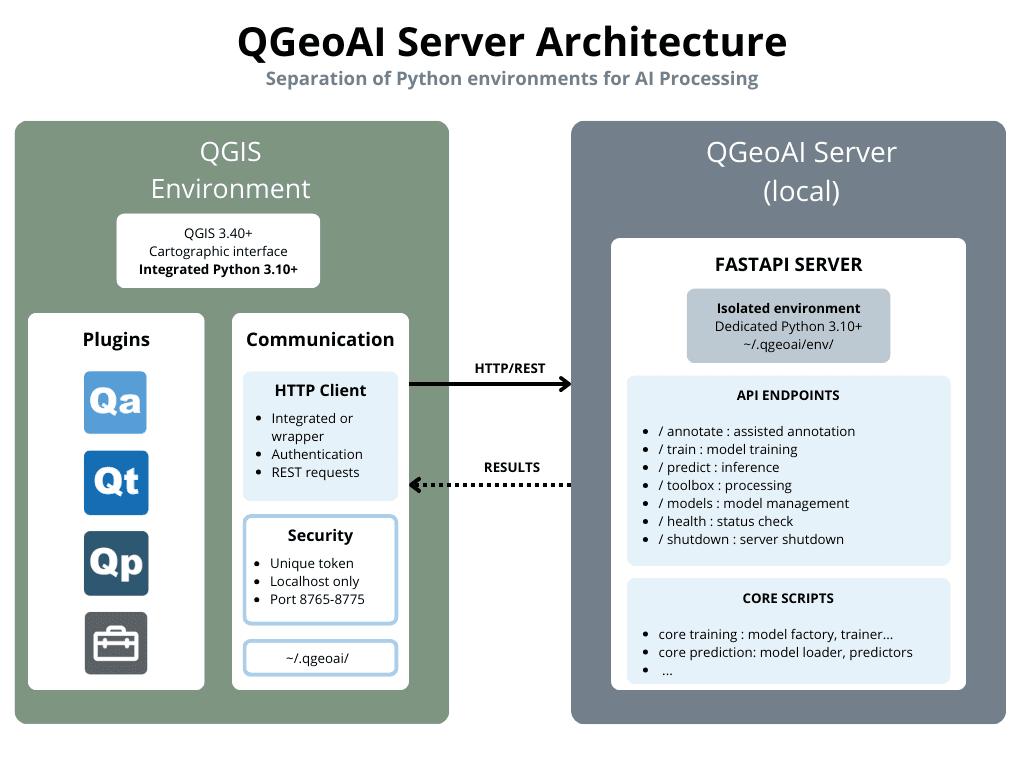
Architecture: Why a Local Server?
The Problem
Modern AI libraries (PyTorch, Ultralytics, SAM2) are large (several GB) and require specific dependencies that can conflict with QGIS's Python environment. Loading these libraries directly into QGIS would cause:
- Significant interface slowdowns
- Python dependency conflicts
- QGIS instability
- Inability to use multiple tools simultaneously
The Solution: Environment Separation
QGeoAI Server solves this problem by creating two distinct Python environments:
1. QGIS Environment (interface side)
- Role: Cartographic display, user interaction
- Content: QGIS + QGeoAI plugins (QAnnotate, QModel Trainer, QPredict, QToolbox)
- HTTP Client: Each plugin manages its server requests (some via dedicated wrapper)
- Advantage: QGIS remains lightweight and responsive
2. Server Environment (computation side)
- Role: Execution of intensive AI processing
- Content: PyTorch, Ultralytics, SAM2, FastAPI
- Location: ~/.qgeoai/env/ (isolated Python environment)
- Advantage: Full access to AI libraries without constraints
How Does It Work?
1. Automatic Startup
When you use a QGeoAI plugin in QGIS, the server starts automatically. The server:
- Searches for an available port between 8765 and 8775
- Generates a unique security token (stored in ~/.qgeoai/server.token)
- Listens only on 127.0.0.1 (localhost) for security
- Saves the used port in ~/.qgeoai/server.port
2. HTTP/REST Communication
Plugins communicate with the server via HTTP requests. Data is exchanged in JSON/GeoJSON format.
3. Available Endpoints
| Endpoint | Plugin | Function |
|---|---|---|
| /health | All | Check that the server is active (no authentication) |
| /status | All | Detailed information (PyTorch, CUDA versions, etc.) |
| /annotate/* | QAnnotate | Interactive segmentation with SAM2 |
| /train/* | QModel Trainer | Model training (YOLO, U-Net, etc.) |
| /predict/* | QPredict | Inference with trained models |
| /models/* | QPredict | Model management (list, load, delete) |
| /toolbox/* | QToolbox | Geospatial post-processing |
| /shutdown | All | Clean server shutdown |
Security and Privacy
Security Mechanisms
1. Token Authentication
- Unique token generated at each startup (256 random bits)
- Stored in ~/.qgeoai/server.token
- Verified for each request (except /health)
2. Network Isolation
- Server listens ONLY on 127.0.0.1 (localhost)
- Impossible to access from another computer
- No outgoing connections (except initial SAM2 model download)
3. Data Privacy
- ✅ All operations are local
- ✅ No data sent over the Internet
- ✅ No telemetry, no tracking
- ✅ Open source: you can audit the code
Can I use QGeoAI with sensitive data?
Yes, absolutely. QGeoAI Server works exactly like QGIS: all operations are performed locally on your machine. The difference is only architectural (separation of Python environments), not functional. It's equivalent to using QGIS Processing or the raster calculator: your data never leaves your computer.
⚡ Technical Advantages
For GIS Users
- No complex configuration: Automated installation with one script, automatic GPU detection and configuration, automatic server startup
- Optimized performance: GPU acceleration (CUDA) if available, models loaded once in memory, no reloading between operations
- Stability: QGIS stays lightweight (no PyTorch libraries loaded), fewer crash risks, error isolation (server crash ≠ QGIS crash)
- Scalability: Easy to add new models or algorithms, support for multiple simultaneous plugins, modular architecture
For Developers
- Separation of concerns: Frontend (QGIS) for user interface, Backend (server) for AI computations, clear communication via REST API
- Testability: Server testable independently of QGIS, documented endpoints (OpenAPI/Swagger), facilitated unit tests
- Maintenance: AI dependency updates without touching QGIS, server versions independent of plugins, centralized logs in ~/.qgeoai/logs/
Typical Workflow
Use case: Building detection
1. Annotation (QAnnotate + SAM2)
- User clicks on buildings in QGIS
- Plugin sends image + points → /annotate/generate_masks
- Server executes SAM2 → returns masks
- Plugin converts to QGIS polygons
2. Training (QModel Trainer + YOLO)
- User configures YOLO11
- Plugin sends dataset → /train/start
- Server trains in background
- Plugin displays real-time progress
- Server exports model in QMTP format
3. Inference (QPredict)
- User loads the trained model
- Plugin sends raster tiles → /predict/batch
- Server applies the model
- Plugin vectorizes and displays results
4. Post-processing (QToolbox)
- User regularizes polygons
- Plugin sends geometries → /toolbox/regularize
- Server applies regularization algorithm
- Plugin updates the layer
Frequently Asked Questions
Does the server consume a lot of resources?
Idle: ~300-500 MB RAM (FastAPI + Python environment). During use, it depends on the operation:
- SAM2 annotation: 2-8 GB VRAM (GPU) or 4-16 GB RAM (CPU)
- YOLO training: 4-16 GB VRAM/RAM depending on model size
- Inference: 2-4 GB VRAM/RAM
What happens if the server crashes?
QGIS continues to function normally. The plugin detects the lack of response and you can restart the server manually or the plugin will offer to restart it. Logs in ~/.qgeoai/logs/ help diagnose the issue.
Can I use multiple plugins simultaneously?
Yes, the server handles multiple requests. Short endpoints (e.g., /health) don't block. Long operations (training) may require waiting or execute in the background depending on the endpoint. SAM2 and short inferences are nearly instantaneous.
How do I uninstall cleanly?
First stop the server, then delete the ~/.qgeoai/ folder
Optimizations
GPU Usage
If you have an NVIDIA card with drivers installed:
- Installation automatically detects CUDA
- PyTorch is configured for GPU
- All computations (SAM2, YOLO, etc.) use the GPU
- Typical acceleration: 3-50x faster than CPU (depending on model and image size)
Model Cache
Models remain loaded in memory between requests:
- First call: loading (3-10s depending on model)
- Subsequent calls: nearly instant (~0.1s overhead)